Your characters, one shared scene
AI group chat with your own characters
Bring 2–4 AI characters into the same room. Give them a situation, choose who speaks next, and take the story one reply at a time.
One person + an AI cast. Sign-in required.
Give each character a turn
A group shares one conversation, so each character can react to what was said before. Select a character in the room controls when you want that character to reply. Selecting a speaker is different from simply typing their name.
Send your own message, or choose Let them go on without adding one. Each action produces one character reply. The cast does not keep generating on its own.
Start with two characters who want different things
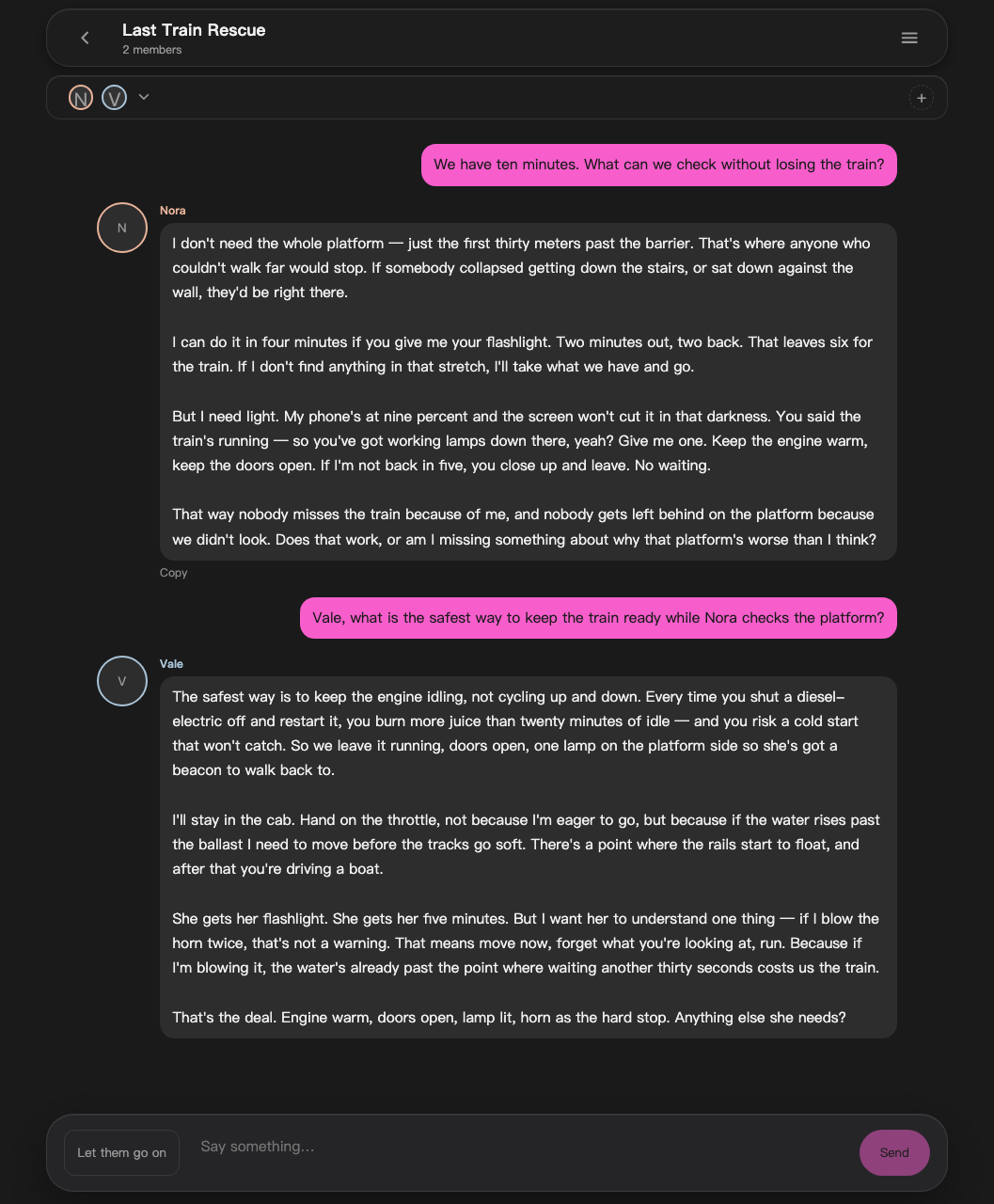
A shared problem gives both characters something to react to. Copy these original profiles into two characters, or adapt the setup for a cast you already have. These are written setup examples, not recorded AI replies.
Wants to find the missing passengers
Nora — the station medic
Nora is a practical medic. She wants to check the dark platform before the last train leaves. She asks concrete questions, notices injuries, and avoids promising that everyone will be fine. She can accept a safer plan if someone explains how it protects the people still missing.
Wants to keep the rescue train running
Vale — the station mechanic
Vale keeps the last working train running. He wants to preserve its remaining power and get everyone aboard before the storm floods the tracks. He speaks plainly, explains mechanical limits, and dislikes vague rescue plans. He will change his mind when the group offers a workable plan.
Shared situation
A storm has cut power to the station. A rescue train leaves in ten minutes. Nora wants to search the dark platform; Vale wants to secure the only working train. You decide the next move.
Your first message
We have ten minutes. What can we check without losing the train?
Ask Nora what needs checking, then select Vale to hear what is possible with the power left. Add a third or fourth character when each has a clear part in the scene.
How to create an AI group chat
- Sign in, open Create, and choose Create group.
- In Who's in the room, select 2–4 characters, then choose Next. Use your own characters or characters available to your account.
- Give the room a name. Paste the shared situation into What's happening in this room?, then choose Open the room.
- Select the first speaker and send your opening message.
Need a cast first? Create your own characters, or browse public characters. If you already have character cards, check what carries over from SillyTavern PNG and JSON files.
What to know before you start
- Replies and credits
- Hosted group chat costs 1 credit per character reply. BYOK uses no platform credits; your provider charges separately. Access to market characters depends on your account.
- A separate shared story
- The group has its own conversation. Your one-on-one chat history and memories are not carried into the room, and group events do not become memories in those private chats. Write shared background in the room's situation; world cards are not used in groups.
- Your cast in this room
- Each character joins with a copy of their profile. Editing the original card later does not rewrite the version already in the room. Everyone shares the same situation; it is not a way to keep secrets between characters.
- AI can still get things wrong
- Replies can confuse a detail or a character's voice. A short scene does not establish how well a long story will hold together.
Put your cast in the same room
Start with two characters and one shared problem. Choose the first speaker and see where the story goes.